Webscorer PRO supports RFID readers from the following vendors:
Alien Technology - http://www.alientechnology.com
ACS - https://www.acs.com.hk
Chainway - https://www.chainway.net
Emit - https://emit.no
Feibot - https://www.feibot.com
Impinj - http://www.impinj.com
Invelion - http://www.invelion.net/
Motorola / Zebra - http://www.zebra.com
Nordic ID - https://www.nordicid.com
MyLaps - https://www.mylaps.com
RaceResult - https://www.raceresult.com
RFID Timing Systems - https://rfidtiming.com
ThingMagic - http://www.thingmagic.com
Thinkify - https://thinkifyit.com
If you have a reader that's not listed above, you’ll want to check from the manufacturer’s specs that the specific model includes support for the LLRP (Low-Level Reader Protocol) which is how Webscorer PRO communicates with the RFID reader. The LLRP protocol was invented in 2008, and adopted by the leading RFID vendors in the years following, so older RFID reader models may need a firmware upgrade to support it. The support for Emit, Feibot, MyLaps, RaceResult and RFID Timing Systems readers is implemented with their respective (proprietary) protocols.
The active chip timing systems (wire loop antenna & chips with a battery) supported are Emit, Feibot, MyLaps and RaceResult.
All readers will multiplex power to its antennas (if more than one antenna is used) such that only one antenna is active at any given time. Based on our latest testing, we would recommend the Impinj readers (R220 and R420) with multiple antennas. The Impij readers use a dynamic algorithm to cycle power quickly enough for a race timing applications. Motorola / Zebra FX7500 and FX9600 support software-set antenna switching which is set at 0.1 seconds per antenna. The other readers have a slow fixed length antenna cycling interval of 0.3-0.4 seconds which is too slow to reliably capture moving chips. They'll work fine with a single antenna which is the optimal setup for timing as that ensures the antenna is powered 100% of the time. You can use multiple readers - Webscorer PRO allows the addition of multiple reader IP addresses to the chip timing setup, no upper limit.
The setup is identical for all manufacturers, provided that the RFID reader is set to obtain its IP address automatically (using DHCP) from the WiFi router - which is the default settings for all new RFID readers.
COMPONENTS NEEDED
You will need the following components to setup the Webscorer app for RFID chip-timing:
- Any Android, iOS, Mac or Windows device capable of running the latest version of Webscorer PRO
- An RFID reader
- At least one RFID antenna
- RFID chips
- A WiFi router providing a local WiFi hotspot
- An Ethernet cable (or two - see below)
You can use an AC power supply which converts AC power to the reader's own voltage which is typically 24V DC. Or you can use a battery to skip the AC-to-DC conversion. Note that most new RFID readers support power-over-ethernet - which is a convenient way to provide power to the RFID reader over longer distances:
- You’d purchase an adapter such as this:
http://www.amazon.com/D-Link-DWL-P200-Power-Ethernet-Adapter/dp/B0002MH3HO
- Connect the power-over-ethernet adapter to an AC power source using its power adapter
- Connect the RFID reader to the POE port of the power-over-ethernet adapter via an Ethernet cable
- Connect the WiFi router to the LAN port of the power-over-ethernet adapter via another Ethernet cable
LIVE RESULTS
If you want to provide LIVE results, you'll need a WiFi router model that provides the internet uplink. The mobile device you'll use for Webscorer PRO chip-timing can only be connected to one network at a time (it is not an IP router) so when the WiFi connection is used to communicate with the RFID reader, the cellular data connection is off - unless you turn on the WiFi hotspot feature and purchase a WiFi router model such as https://cradlepoint.com/products/mbr95 that can use a WiFi hotspot as its own internet uplink.
An alternative is to run Webscorer PRO on a Mac or Windows, and use a direct Ethernet connection from the laptop to the Impinj or Motorola / Zebra reader - or via an Ethernet-to-Ethernet router - which will then free up the computer's own WiFi connection to be used for internet access and LIVE results.
HARDWARE SETUP
1. Power on your WiFi router
- Most new WiFi routers work out of the box without any additional setup steps
- The WiFi hotspot is typically available without a password, but you should add one
2. Create a WiFi connection from your mobile device to the WiFi router
- Check via the device’s settings that the WiFi connection is active
- Note that your device can connect to only one network at a time, i.e. WiFi or cellular
- For simultaneous internet connectivity (e.g. for LIVE results), the WiFi router must provide the internet uplink
3. Power on your RFID reader
- Using its own power adapter, or
- Using the power-over-ethernet capability described above
4. Connect the RFID reader to the WiFi router via an Ethernet cable
- Make sure to use one of the numbered ports
- I.e. do not connect the WiFi router to the port labeled “Internet"
WEBSCORER APP VERSION
Make sure you’re running the latest app version (presently v5.5)
If you don't have a PRO suscription, activate the free PRO Trial on the app
- The PRO Trial supports all features, including chip timing
- There is no expiration date for the PRO Trial
- The only limitation is that start lists are limited to max 5 racers
If you’re an existing PRO subscriber:
- Create a new Webscorer account
- Sign in with the new account to the app & activate the PRO Trial
WEBSCORER PRO SETUP
To turn the RFID feature on, set “Chip timing = On” in the “Hardware Setup” panel and select the type of RFID reader you have:


Chip ID = Bib
Turn this setting to “On” if your chips are programmed to match the bib number
This makes the start list setup easy as you don’t need to configure chip IDs for each racer
Example: chip ID 000000000000000000000022 will be interpreted as bib 22
Chip IDs per racer
- Leave this setting as 1 when
- Each racer will have just one chip, or
- Each racer has 2 or more chips programmed to the same chip ID
- Change this setting to 2 when
- Each racer will carry two RFID chips with unique chip IDs
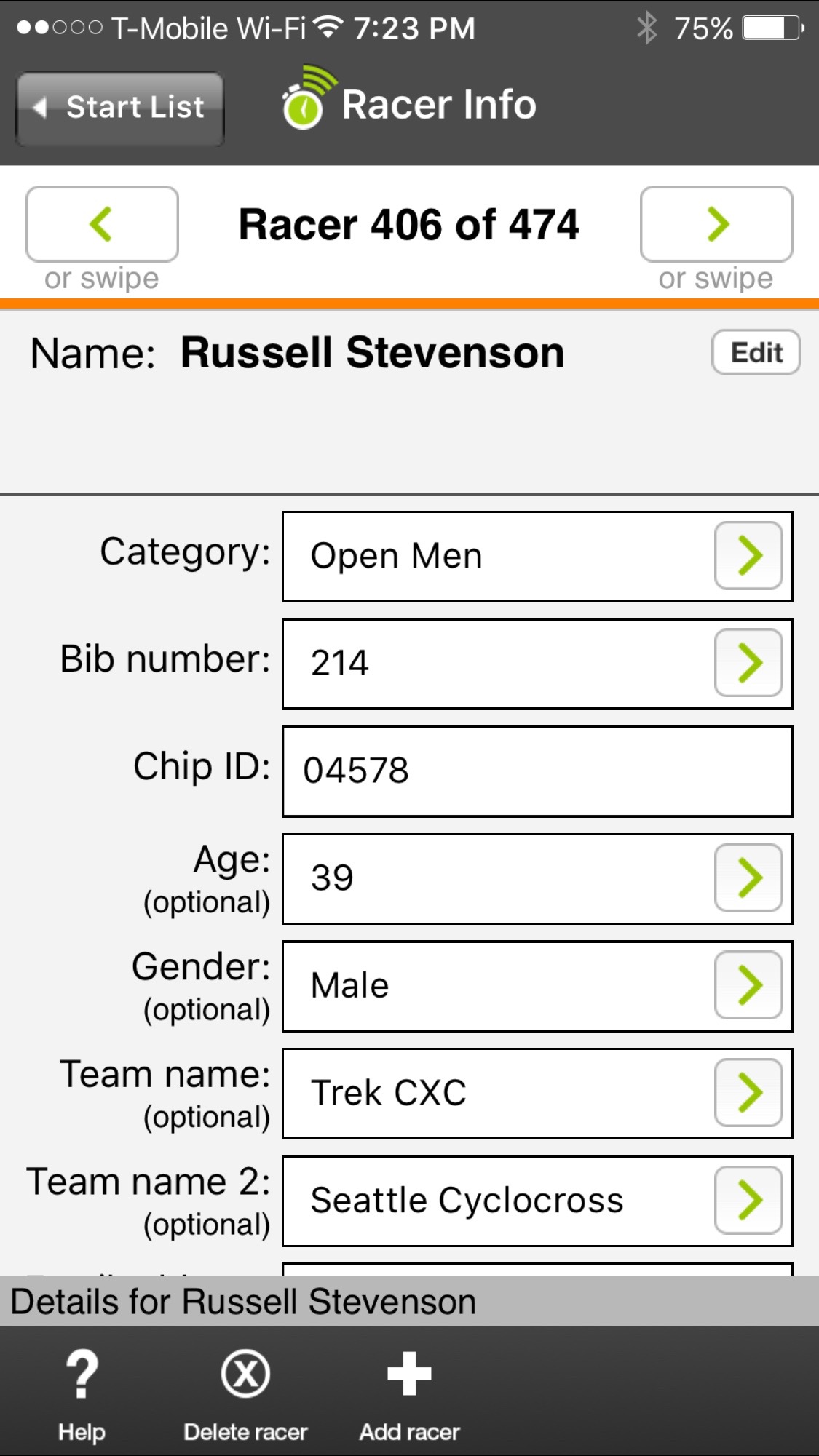
Use partial chip ID
Turn this setting “On” when
- Your chips are programmed such that only the last x characters are unique, or
- You don’t want to enter the whole 24-character chip ID for each racer on your start list
- Example:
- You set to match the last 5 characters of the chip ID
- The full 24-character chip ID is of form 300833B2DDD9014000004578
- You'd enter 04578 as the "Chip ID" for the racer
Turn this setting "Off" when
- You’ll be configuring each racer’s “Chip ID” field with the the full 24-character ID
Chip timing system
- Select "Chip timing system = RFID-LLRP"
- The app also supports NFC chip timing where the iOS or Android phone acts as the reader
Reader IP address
- The easiest way to get the reader’s IP address correct is by using the “Scan for reader” feature
- You can also enter the IP addresses by typing them into the app, if you don’t want to use the “Scan for reader” function
- Once your reader is connected to the WiFi router, you can find its IP address automatically
- Tap the “Scan for reader” button, and then tap the “Scan” button
- The app will step through all local IP addresses of the WiFi router until it finds the RFID reader
- The LLRP protocol uses a known port number, and that’s what the app is looking for
Example:
- The WiFi router’s base address is 192.168.1.1
- The scan would start at 192.168.1.1 and continue until 192.168.1.254
- If the RFID reader’s IP address is e.g. 192.168.1.6, the scan will find it quickly
- However, if the RFID reader’s IP address is e.g. 192.168.1.200, it may take 2 minutes until the reader is found
If the scan does not find the RFID reader, check the following:
1. Check that your RFID reader model / firmware supports the LLRP protocol
2. Check that the RFID reader is connected to one of the local ports on the WiFi router
3. Check that the RFID reader is configured to get its own IP address from the WiFI router via DHCP
- You can use a fixed IP address for the RFID reader provided the address is within WiFi router’s address range
4. Check that the RFID reader does not have resident software loaded that may have disabled the LLRP support
Multiple RFID readers
You can attach multiple RFID readers to the same Webscorer PRO app
An example is a triathlon where you may want to have a separate RFID reader for each exchange
You’d first attach all RFID readers to the same WiFi router
And then tap the “Scan” button to find the first, and again tap the “Scan” button to find the next
There is no upper limit on the number of simultaneously connected RFID readers
Do not detect any chips after start for
This setting is to avoid incorrect chip detects in 2 situations:
(a) Your racers may go through the finish area after the start
- You don’t want anyone’s chip detected until a minimum time to complete the race course has passed
- E.g. in a 5k race, you’d set the timeout to 5 minutes (or less)
(b) If you're recording chip start (see below)
- You'd use this timeout to set the time period during which chips are detected for start time
- E.g. in a 5k race, you'd set the timeout to 5 minutes
- Before 5 minutes, any chip detects are considered as start times
- After 5 minutes, any chip detects are considered as finish times
Do not redetect same chip after lap for
This timeout can be specified in a race with laps to prevent inadvertent chip detects:
- A racer may stop near the antenna after completing a lap
- You don’t want this racer to get another (quick) lap time
- You’d set the timeout to a value that’s expected to be the quickest possible lap time (or less)
- In a typical lap race, you'd set both timeouts to less than the time to complete a single lap
Note that when testing before the race, you’ll want to set the value to a short period, e.g. 10 seconds
If you set the timeout to 5 minutes, the app will ignore all chip detects until the race clock says 00:05:00
Test connection
To double-check that the connection is setup correctly, tap the “Test connection” toolbar button
If you setup multiple RFID readers, the “Test connection” function will go through each reader
The "Test connection" toolbar icon is also available on the "Race Start" panel
Chip start
You can record each racer their own chip start time by using the "Chip start" option.
In the attached example, the system will work as follows:
1. You’d start the race by tapping the “Start race” button on the “Race Start” panel of the app
2. Racers whose chip is detected within the first 5 minutes will get chip start time
3. Racers whose chip is not detected within the first 5 minutes will get app start time
4. Racers whose chip is detected after 5 minutes will be recorded as finished
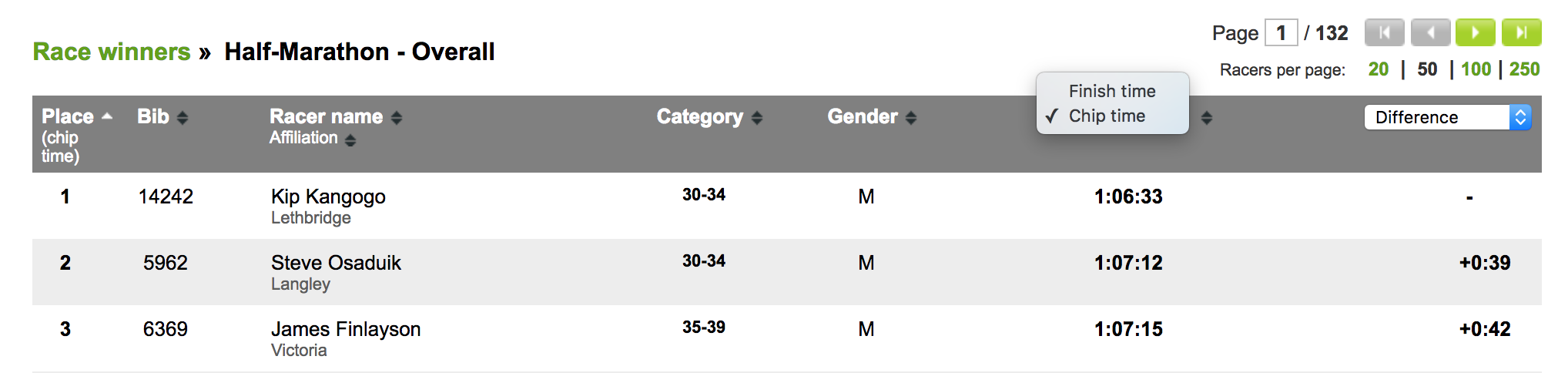
5. The results will show both the gun time and chip time:
- Post the results to Webscorer.com
- Navigate to the results page
- Click on the dropdown on the column header that says “Finish time” and select “Chip time”
6. Example results with chip times: https://www.webscorer.com/race?raceid=1493
The chip start works also in wave starts - the "Do not detect any chips after start" timeout is calculated separately for each wave:
1. Let's assume the timeout is set to 5 minutes
2. Say first wave starts at 00:00 and the second wave starts at 10:00
3. Anyone in the first wave will get a chip start time if the chip is detected before 05:00
4. Anyone in the second wave will get a chip start time is the chip is detected from 10:00 to 15:00

Chip detection mode
The RFID reader detects the chip many times while the chip travels within the antenna’s range. That setting tells the reader whether to report the chip detect time when it was detected for the first time - or when the radio signal from the chip was detected to be strongest within the specified period, typically when the chip is closest to the antenna.
If you use the “First detect”, the app will beep immediately when the chip was detected for the first time. If you use “Best detect” and specify the time period to be 0.5 secs, the app will beep 0.5 secs later than the first detect.
For optimal timing accuracy, use “Best detect” and specify the time period as 0.5 secs.
TIPS WHEN TIMING A RACE WITH CHIPS
The RFID reader will not read any chips until you tap “Start race” which is when the app activates the RFID reader
You’ll want to operate in the “Fast-tap view” to see all the chip detects showing up on the list
If a racer finishes and the chip was not detected, you can tap a time stamp and assign it to a bib number manually
If a chip is detected that’s configured to a racer on the start list, the app will give a HIGH BEEP sound
If a chip is detected that’s not configured to any racer on the start list, the app will give a LOW BEEP sound:
1. A typo when the Chip ID was entered for a racer (e.g. 55429 was entered as 55428)
- Find the bib number for the racer whose chip was not recognized
- Tap the “Start list” toolbar button
- Tap “Search by bib” toolbar button
- Correct the typo on the ‘Chip ID” field, and tap “Done”
- The app will show a popup saying “There’s a chip detect that matches this chip ID - assign to this racer”?
- Confirm “Yes” on the popup
2. Chip was programmed incorrectly (chip reads differently than what the chip ID label says)
- Same steps as above except that if multiple chips read as the same chip ID, e.g. 00000
- If multiple chips read as 00000, you need to assign such entry manually via the “Fast-tap view"
- Tap the yellow Bib field to the left of the chip ID
- In “Fast-tap view”, tap the racer’s bib to assign this time stamp to that bib number
- In “Keypad view”, enter the bib number of the racer whose chip did not read correctly
3. Chip ID belongs to a racer who's on the start list but is marked as DNS
- Tap the "Start list" toolbar button
- Find the racer on the list
- Tap the DNS toolbar button
- Select the "Cancel DNS" button
- Tap the racer name on the start list
- The app will show a popup saying “There’s a chip detect that matches this chip ID - assign to this racer”?
4. Chip ID belongs to a racer who’s not on the start list
- Find the details for the racer (Name, Bib, Category, etc.)
- Tap the “Start list” toolbar icon
- Tap the “Add racer” toolbar icon
- Add the racer to the start list, including the chip ID
- The app will show a popup saying “There’s a chip detect that matches this chip ID - assign to this racer”?
- Confirm “Yes” on the popup
GENERAL NOTES ABOUT RFID TIMING
1. All RFID readers cycle power to connected antennas
- If you have 4 antennas connected to a single RFID reader, only one antenna is powered at any given time
- The Alien reader powers first antenna for 0.3 seconds, then switches to the next antenna
- The Zebra FX7500 reader powers first antenna for 0.1 seconds, then switches to the next antenna
- The Impinj R420 reader has an algorithm which distributes power more often to the antenna with most chip detects
- This means that having 2 antennas side by side is most likely a waste of one antenna
- In a running race, the racer is moving at approximately 10 feet per second, of 4 feet in 0.4 seconds
- In a mtn-biking race, the racer is moving at approximately 20 feet per second, or 8 feet in 0.4 seconds
- The antenna placement should therefore be no more frequent than the power-cycling interval of the reader
- And it matters which port is assigned to each antenna (readers cycle power sequentially across the ports)
- Stagger the antennas when using more than one
- If you want all your antennas on 100% of the time, then use multiple RFID readers, each with one antenna
2. Check your RFID reader's power settings
- RFID antenna power is measured in dBm
- Some readers max out at 30 dBm, while others go up to 31.5 dBm
- While this seems like a small difference, the 1.5 dBm difference is 40% when measured in watts
- It matters how you provide power to the reader, whether it's AC adapter, DC battery or POE (power over ethernet)
- Check your RFID reader specs to make sure the power supply does not limit max dBm
3. Antenna type does matter
- Circular polarization works better unless you can control chip orientation
- Narrow beam vs. wide beam will focus more of the antenna power
- Mat antennas (with bib-attached or ankle-attached chips) work well in running races
- Overhead antennas (with helmet-mounted chips) work well in cycling races
- Side antennas are least expensive, but not always most effective
4. Tips how to achieve (close to) 100% chip detection rate
- Use two RFID chips per racer, programmed the same (they can also have unique chip IDs)
- Two chips per racer typically works better and is more cost effective than an extra antenna
- The antenna must “see” the chip preferably head-on vs. sideways
- The antennas must be as close as possible to the chip
- Anything beyond 6 feet may be too far
- Chips don't read through another racer's body
- The chip cannot be covered by wet clothing
- On a bike, keep the chip away from metal parts of the bike
- It is not a good idea to cover the chip with another label or sleeve
- Try to keep the chips & antennas high above any snow & water
SPECIAL NOTES
1. If Webscorer PRO loses a connection with the RFID reader during the race:
- The quickest way to reestablish the reader connection is to cycle the device's WiFi connection off & on again
- Webscorer PRO will automatically retry until it establishes the connection to the reader's LLRP port
- Another option is to reboot the RFID reader and / or the WiFI router
- You can close the Webscorer PRO app (or kill it from memory) and restart, no timing data will be lost
- If you restart the race on Webscorer PRO, you will lost chips detected thus far
2. If you exit the iOS app during timing, Webscorer PRO will lose its connection with the RFID reader
- The connection will be auto-reconnect when you go back to the app
- Unless you’re using a Motorola / Zebra reader, any chips detected during this outage will be lost
3. You can exit the Android app to use another app during the timing without losing any chip detects
- The connection stays alive with the app in the background
- This is regardless of which RFID reader you use
USING YOUR EXISTING RFID SYSTEM WITH WEBSCORER PRO
All existing RFID timing vendors embed a standard RFID reader within their own systems, hidden under the covers
For example:
- Jaguar / Innovative Timing Systems embed the Alien Technology 9900+ reader
- MyLaps embeds the Impinj Speedway reader
- ChronoTrack embeds the Impinj Speedway reader
- Orbiter embeds the Motorola FX7400 or FX7500 reader
To get your reader to work with Webscorer PRO, you may need to reset the reader back to its factory settings or upgrade the reader firmware.
If the reader was previously connected to a laptop via a direct Ethernet connection
- The RFID reader is likely configured with a fixed IP address
- You may need to change the RFID reader settings to allow dynamic IP addressing via DHCP
- Or reconfigure the fixed IP address to match the local IP address range supported by your WiFi router
- Note that you can always reset the RFID reader to its original factory settings by following the manufacturer’s instructions
SUMMARY
You should be up and running within minutes of receiving your new RFID reader.
You can use best-of-breed RFID readers & antennas from leading manufacturers.
You can build your own chip timing system vs. purchasing an expensive “all-in-one” solution.
You’ll be free to use anyone’s RFID chips without any technical or contractual tie-in.
If you have any questions, we’re always willing to assist for FREE over email or phone - send us a note at support@webscorer.com.